

OpenClaw Extension
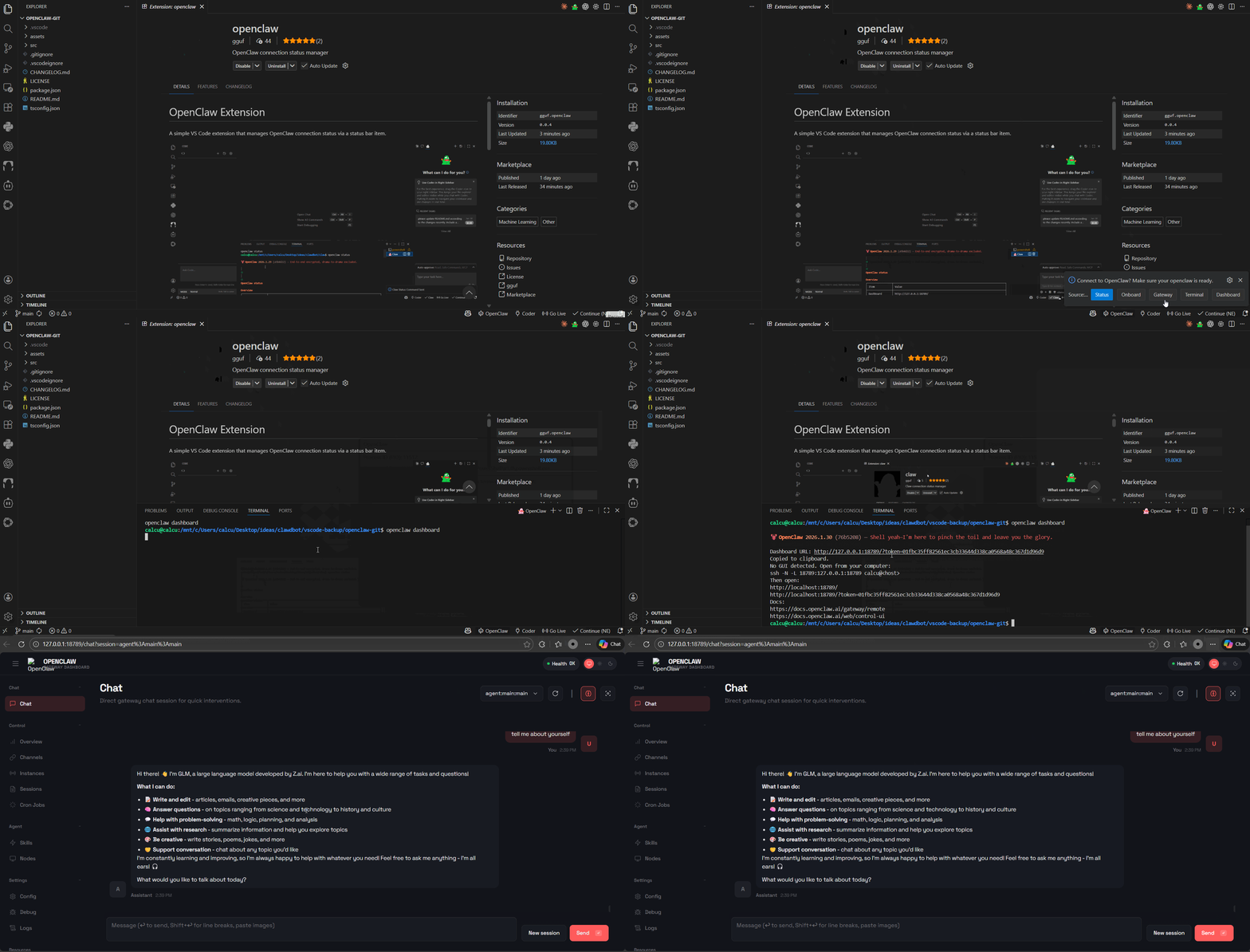
A simple VS Code extension that manages OpenClaw connection status via a status bar item.
Requirements
- Visual Studio Code version 1.74.0 or higher (marketplace or compatible IDE via open-vsx)
- OpenClaw installed (see install openclaw via npm below)
npm install -g openclaw@latest
Features
Status Bar Item: Shows connection status with three states:
$(hubot) OpenClaw- Not connected (click to connect)$(sync~spin) Connecting...- Connection in progress$(check) OpenClaw- Connected to OpenClaw
Menu Selection Scheme: Re-structured to provide command menu with options:
- Status
- Onboard
- Gateway
- Terminal
- Dashboard
OS Detection: Automatically detects the operating system and uses:
openclaw statuson Windows (wsl)openclaw statuson other platforms
Auto-Connect: Optional setting to automatically connect on startup (disabled by default)
Terminal Management: Creates or reuses terminal based on OS detection
Command Execution: Supports multiple commands (status, onboard, gateway, tui, dashboard)
Usage
- Click the OpenClaw status bar item (bottom right) to show the menu
- Select one of the options from the menu (Status, Onboard, Gateway, Terminal, Dashboard)
- The extension will open a terminal and execute the corresponding
openclawcommand - To enable auto-connect, go to Settings and enable
OpenClaw: Auto Connect
Configuration
openclaw.autoConnect: Boolean value to automatically connect to OpenClaw on startup (default: false)
Structure Diagram
graph TD
    A[VS Code] --> B[OpenClaw Extension]
    B --> C[Status Bar Item]
    C --> D{Menu Selection}
    D --> E[Status Command]
    D --> F[Onboard Command]
    D --> G[Gateway Command]
    D --> H[Dashboard Command]
    E --> I[WSL Terminal]
    F --> I
    G --> I
    H --> I
    I --> J[openclaw CLI]
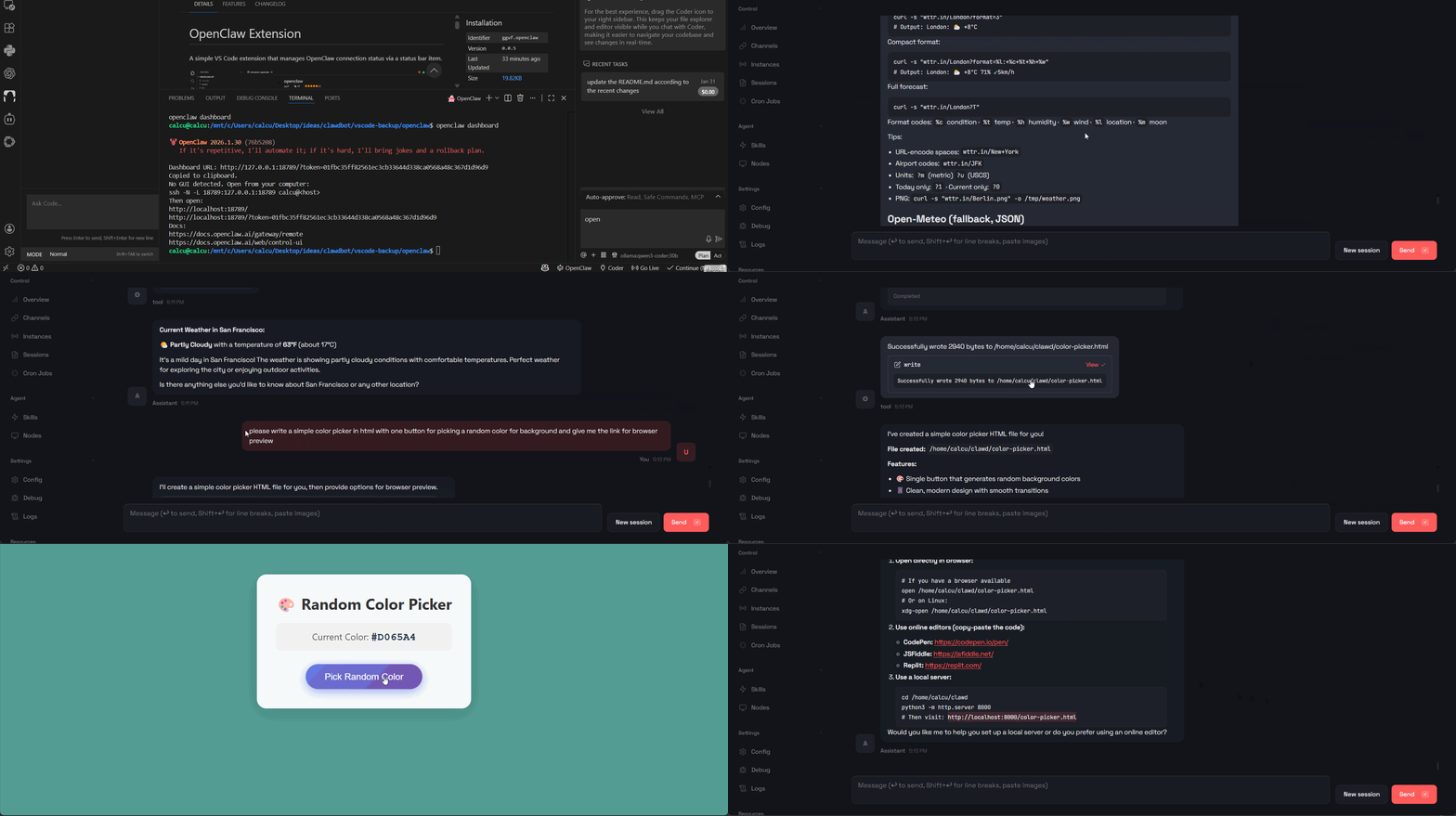 *fetch the weather info in SF today; write a color picker for picking a random color for background
Workflow
- Initialization: Extension activates and creates status bar item
- User Interaction: User clicks status bar item to open menu
- Command Selection: User selects from Status, Onboard, Gateway, Terminal, or Dashboard
- Terminal Management: Extension creates or reuses terminal based on OS
- Command Execution: Selected command is sent to terminal
- Status Update: Status bar item updates based on connection state
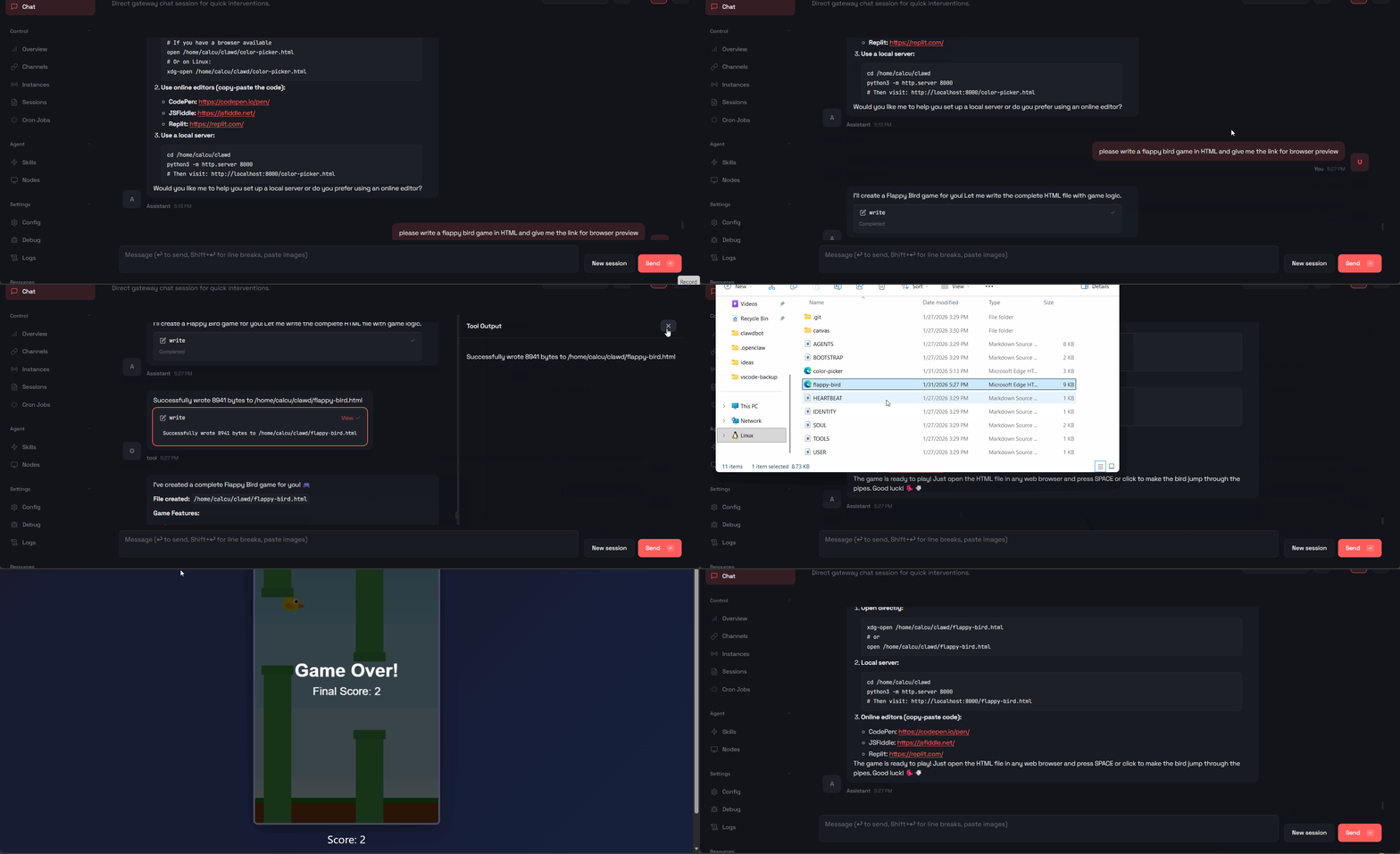 *make a flappy bird game on the air
Development
- Install dependencies:
npm install - Compile:
npm run compile - Press F5 to launch the Extension Development Host
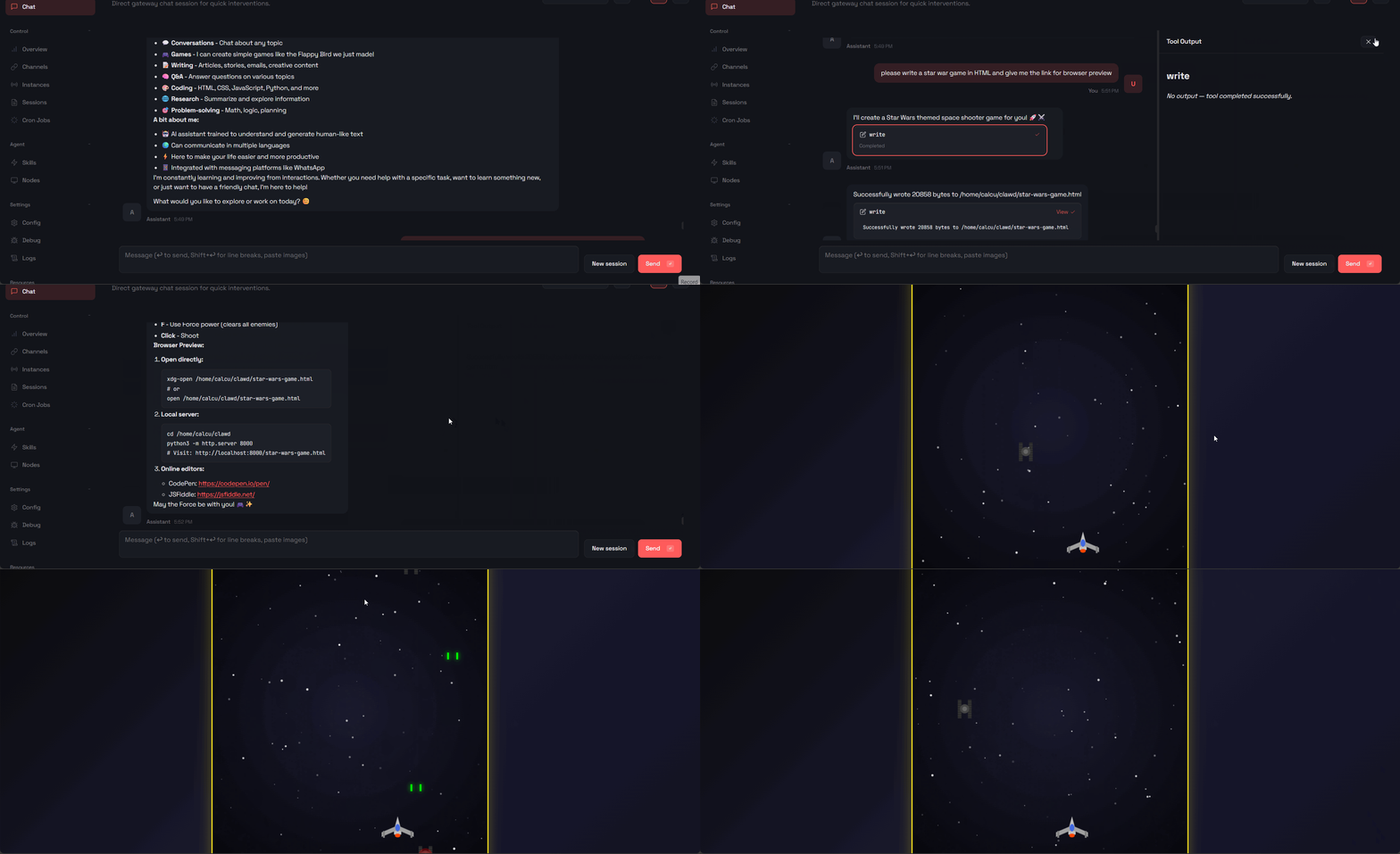 *create a star war game on the go
Commands
OpenClaw: Show Menu- Show the OpenClaw menu with command options
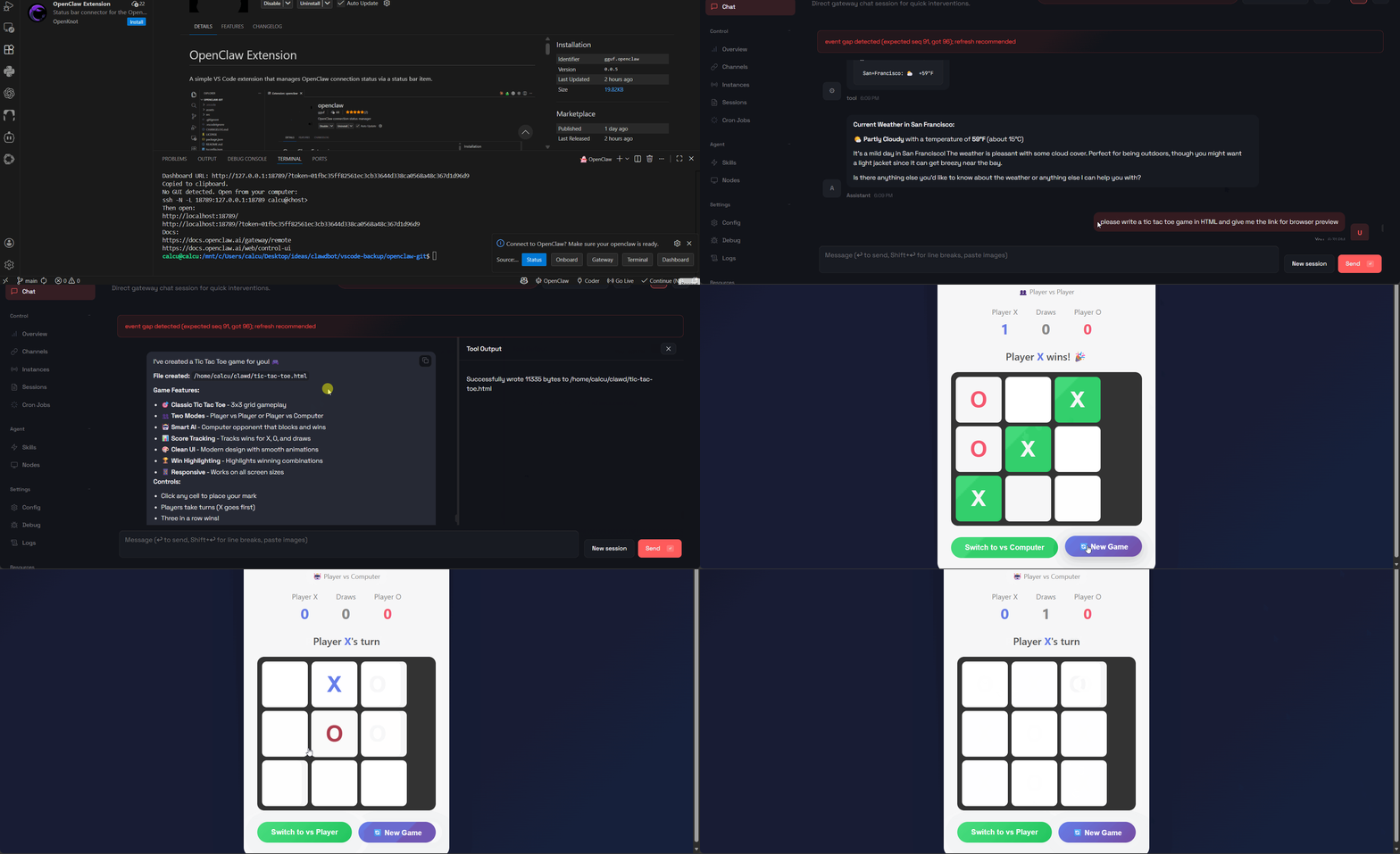 *code a tic tac toe game (allows two players or playing against an AI)
License
MIT